PALATE - User Manual
Carbonated Audio - v1.0.0
Parametric and dynamic EQ. VST3, AU and AAX for macOS, VST3 for Windows.
This manual covers installing PALATE, activating your licence, the display, every band control, draw mode, peak catch, dynamics, placement, the phase modes and the global settings. If you only read two sections, read Quick start and Peak catch.
1. Overview
PALATE is a parametric EQ with up to 24 bands. You shape it directly on a live spectrum: double-click to add a band, drag it for frequency and gain, scroll over it for Q. Any bell or shelf can be made dynamic, so it moves only when the signal in its range crosses a threshold. Three phase modes cover tracking, mixing and mastering.
- Draw mode fits bands to a curve you sketch across the display.
- Peak catch finds the resonances in the signal and turns one into a dynamic band in a single drag.
- Placement puts any band on stereo, left, right, mid or side.
| Spec | Value |
|---|---|
| Formats | macOS: VST3, AU, AAX. Windows: VST3 |
| System | macOS 11 or later, one universal build for Apple Silicon and Intel. Windows 10 or 11, 64-bit |
| Bands | Up to 24 |
| Shapes | Bell, low shelf, high shelf, low cut, high cut, notch, band pass, tilt |
| Ranges | Gain -30 to +30 dB, Q 0.1 to 30, cut slopes 6, 12, 18, 24, 36, 48, 72 and 96 dB/oct |
| Dynamics | Per band on bells and shelves: threshold -80 to 0 dB, attack, release, range 1 to 30 dB |
| Placement | Per band: Stereo, L, R, Mid, Side |
| Phase modes | Zero Latency, Natural Phase, Linear Phase (Low, Medium, High quality) |
| Latency | None in Zero Latency and Natural Phase. Linear Phase: 1280, 4352 or 16640 samples (about 27, 91 or 347 ms at 48 kHz), reported to the host |
| Inputs | Stereo in and out |
| Presets | 18 starting points. Opens flat (Default has no bands) |
| License | 3 machines per license. Activate once online, works offline after that |
2. Installing
- Download
PALATE-Installer.pkgfrom the link in your receipt email, or from the button at the top of this page. - Double-click it and follow the installer. It is signed and notarized, so macOS opens it without a warning.
- Rescan plugins in your DAW if it does not pick PALATE up on its own. It is listed as PALATE under Carbonated Audio.
| Format | Location |
|---|---|
| VST3 | /Library/Audio/Plug-Ins/VST3/PALATE.vst3 |
| AU | /Library/Audio/Plug-Ins/Components/PALATE.component |
| AAX | /Library/Application Support/Avid/Audio/Plug-Ins/PALATE.aaxplugin |
The AAX is signed for Pro Tools.
Installing on Windows
- Download PALATE-Windows-Installer.exe from the link in your receipt email or here.
- Quit your DAW.
- Run the installer. It puts the 64-bit VST3 in
C:\Program Files\Common Files\VST3\PALATE.vst3, the folder every VST3 host scans by default. If Windows shows a "Windows protected your PC" screen, click More info, then Run anyway. - Launch your DAW and let it rescan.
Windows is VST3 only. If your host is 32-bit or VST2-only, PALATE will not appear in it. To remove PALATE, use Settings > Apps.
3. Activating your license
The first time you open PALATE, the footer reads Not activated. Click Activate and the activation window opens over the interface.
- Copy the license key from the email from hello@carbonatedaudio.com.
- Paste it into the field and press Activate. PALATE contacts carbonatedaudio.com once.
- The footer now reads Licensed. Every launch after that is offline - no account, no dongle, no check-ins.
Until PALATE is activated it passes your audio through unchanged, so nothing in your session breaks while you sort out a key.
One license covers 3 machines. To move an activation to a new computer, email mixedbysoda@gmail.com and we'll reset one. The activation record lives at ~/Library/Application Support/Carbonated Audio/PALATE/license.json on macOS and %APPDATA%\Carbonated Audio\PALATE\license.json on Windows. The activation window also shows this computer's Machine ID, which support may ask for.
4. The demo
The free demo (macOS, Windows) is the full plugin - every band, every mode, every control, AAX included on macOS. Audio plays for 60 seconds, then mutes for 10, on a loop, and the footer says so while it is muted. There is nothing to activate.
When you buy, run PALATE-Installer.pkg (macOS) or PALATE-Windows-Installer.exe (Windows) from your receipt email. It installs over the demo; sessions you saved with the demo open in the full version.
5. Quick start
PALATE opens flat, so the first thing you hear is your own move.
- Put PALATE on a vocal or a drum bus and press play. The spectrum runs behind the curve.
- Double-click on the display at about 200 Hz, a little below the centre line. You get a bell cut. Drag it around. Scroll over it to narrow or widen it.
- Double-click at the far left, near the bottom. You get a low cut. The SLOPE buttons in the band strip set how steep it is.
- Find a note or a vowel that pokes out. Press and hold under the spectrum for one second: the peaks light up. Slide to the one that bothers you and pull it down. That band is dynamic - it only cuts when that tone jumps out.
- Press A/B in the header to compare against the untouched copy, and undo anything you regret.
An instructions drawer slides down the first time the plugin opens and folds away on its own. It lives behind the Need help? tab at the top of the display after that.
6. The interface
PALATE is one window, 1120 by 690 at 100%, and it scales with the host window.
Header
| Control | What it does |
|---|---|
| Undo / Redo | Step back and forward through every change, band by band. |
| A / B | Two full states of the plugin. Click the other letter to switch; both are saved with the session. |
| Preset arrows and name | Step through the starting presets. The name shows which one you are on. |
| Draw | Toggles draw mode. See Draw. |
Display
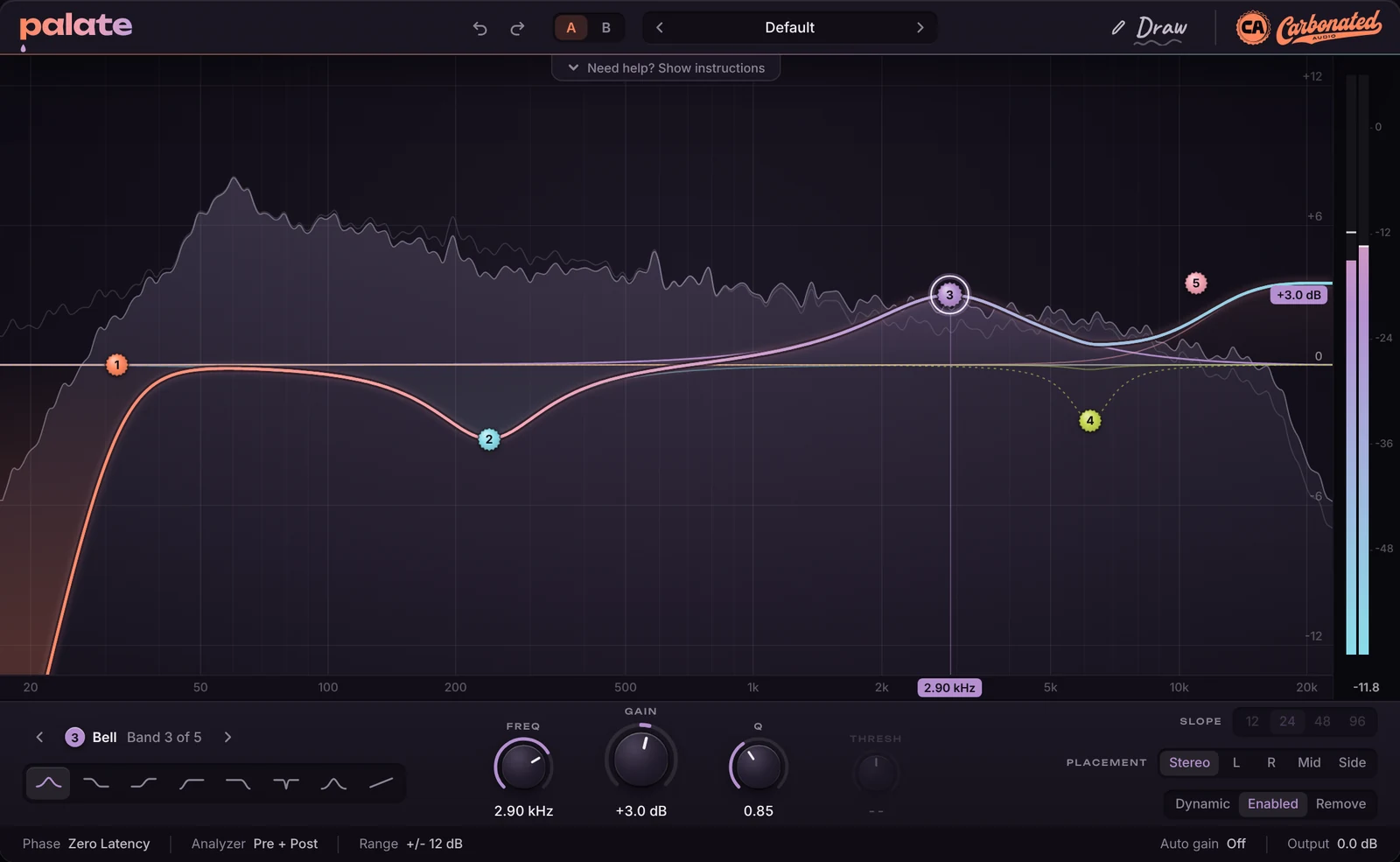
Frequency runs 20 Hz to 20 kHz left to right on a log scale. Gain runs up and down, plus or minus the Range set in the footer (6, 12 or 30 dB). The pre and post spectra run behind the curve; the output meter is on the right. Each band is a numbered cap on the curve in its own colour. The selected band's cap is ringed, and its frequency readout sits on the frequency axis.
Band strip
Everything about the selected band: the shape buttons, the band number and arrows, FREQ, GAIN, Q and THRESH knobs, SLOPE (cuts only), PLACEMENT, and the Dynamic, Enabled and Remove switches. See Bands.
Footer
Phase mode, analyzer mode, display range, linear-phase quality (when Linear Phase is on), auto gain, output gain, and the licence state. Click an item to change it. See Global settings.
7. Bands
On the display
| Gesture | Result |
|---|---|
| Double-click empty space | Adds a band. The shape follows where you click: a cut near the left or right edge, a shelf a little further in, a bell in the middle. Click above the centre line for a boost, below for a cut. |
| Drag a cap | Frequency left and right, gain up and down. Cuts and notches only move left and right. |
| Scroll over a cap | Q. Narrower one way, wider the other. |
| Shift while dragging or scrolling | Fine moves. |
| Click a cap | Selects the band; the band strip follows. |
| Alt-click a cap | Bypasses the band. Alt-click again to enable it. |
| Double-click a cap | Removes the band. |
| Press and hold under the spectrum | Peak catch. See Peak catch. |
In the band strip
| Control | Range | Notes |
|---|---|---|
| Shape | 8 shapes | Switching to a cut sets Q to 0.71 (a flat Butterworth knee); switching away from one restores a usable Q. |
| FREQ | 20 Hz to 20 kHz | Drag up or down, or scroll. Double-click resets. |
| GAIN | -30 to +30 dB | Greyed out on cuts, notches and band passes, which have no gain. |
| Q | 0.1 to 30 | Higher is narrower. On shelves it sets the knee; on tilt it sets how gradual the tip is. |
| THRESH | -80 to 0 dB | Only active on a dynamic band. See Dynamics. |
| SLOPE | 6 to 96 dB/oct | Low and high cuts only. 12, 24, 48 and 96 are shown; the full set is 6, 12, 18, 24, 36, 48, 72, 96. |
| PLACEMENT | Stereo, L, R, Mid, Side | See Placement. |
| Dynamic | On / off | Bells and shelves only. |
| Enabled | On / off | Same as Alt-click on the cap. |
| Remove | - | Deletes the band. Undo brings it back. |
8. The shapes
| Shape | What it is | Gain | Dynamic |
|---|---|---|---|
| Bell | Symmetric boost or cut around the centre frequency. Q sets the width. | Yes | Yes |
| Low shelf | Boost or cut everything below the corner. Q sets the knee. | Yes | Yes |
| High shelf | Boost or cut everything above the corner. Q sets the knee. | Yes | Yes |
| Low cut | Removes everything below the frequency at the chosen slope. Butterworth cascade. | No | No |
| High cut | Removes everything above the frequency at the chosen slope. | No | No |
| Notch | Deep narrow cut at one frequency. Q sets how narrow. | No | No |
| Band pass | Passes only the band around the frequency. Q sets how narrow. | No | No |
| Tilt | Tips the whole spectrum around the centre frequency: up on one side, down on the other, by the gain amount. | Yes | No |
9. Draw mode
- Click Draw in the header. The cursor becomes a pen over the display.
- Press and drag across the display, left to right, tracing the response you want. You can go back over a section to change it.
- Let go. PALATE fits up to seven bells to your line, widest and loudest first, until the line is matched to within about a decibel.
The fitted bands are ordinary bands, added on top of whatever was there: drag the caps, change a bell to a shelf or a cut, make one dynamic. A very short or nearly flat sketch is ignored. Undo removes the whole draw in one step. Draw stays on until you click it again.
10. Peak catch
Peak catch is for the tone that only sometimes pokes out: a note on a bass that rings, a vowel on a singer, a cymbal that pierces on the hard hits. A static cut would dull every other note too. A dynamic band only cuts when that tone is there.
- Play the part. Move the mouse under the spectrum, in the lower part of the display where there is no band cap.
- Press and hold for one full second. The spectrum freezes and the resonant peaks it finds are marked. Nothing happens if you let go early.
- Keeping the button down, slide to the marked peak you want. The nearest one highlights.
- Pull it down. A dynamic bell appears at that frequency with a Q matched to the width of the peak and a threshold set just above the level that frequency usually sits at. How far you pull sets how much it can cut.
- Let go. Watch the cap: it moves only when that tone jumps out.
After the catch you can adjust it like any band: FREQ, GAIN (the maximum cut), Q, THRESH and the attack and release behind it. Turn Dynamic off to make it a plain static cut.
11. Dynamics
A dynamic band listens to the signal at its own frequency and Q, and moves its gain between flat and the band's full gain as that level rises above the threshold.
| Control | Range | What it does |
|---|---|---|
| Dynamic | On / off | Turns the band's detector on. The cap shows the live gain; the curve shows the band's current position, with the full gain drawn dotted. |
| THRESH | -80 to 0 dB | The detector level at which the band starts to move. Below it the band is flat. |
| Range | 1 to 30 dB | How far above the threshold the detector has to go for the band to reach its full gain. Small values snap, large values ease in. Default 12 dB. |
| Attack | ms | How fast the band moves in. Default 10 ms. |
| Release | ms | How fast it moves back out. Default 120 ms. |
Range, attack and release are per band and exposed to the host as automation parameters (see Automation). The band's GAIN is the most it will ever move: -6 dB on a dynamic bell means it cuts up to 6 dB, never more.
A dynamic band with positive gain works the other way round: it boosts when the detector rises above the threshold. Useful for air that only comes up on the loud phrases.
12. Placement
Every band has a placement, set in the band strip.
| Placement | Acts on |
|---|---|
| Stereo | Both channels together. The default. |
| L | The left channel only. |
| R | The right channel only. |
| Mid | The centre (L+R). Vocals, kick, bass, snare. |
| Side | The sides (L-R). Width, room, stereo guitars and pads. |
Mid and side bands are processed in a mid/side domain and folded back to stereo, so they add nothing to the stereo bands. A mono signal passes a side band untouched. In Linear Phase mode, bands on L, R, Mid or Side stay minimum phase so they can be mixed with the stereo FIR; see the next section.
13. Phase modes
| Mode | Latency | Use it for |
|---|---|---|
| Zero Latency | None | Tracking, live, anything where delay matters. Classic minimum-phase filters. Bells near the top of the spectrum narrow towards 20 kHz, as every digital EQ of this kind does. |
| Natural Phase | None | Mixing. Bells are designed with the analog prototype's gain at the top of the spectrum, so a 12 kHz bell keeps its shape instead of pinching. Still minimum phase, still no delay. |
| Linear Phase | Low: 1280 samples. Medium: 4352. High: 16640 (about 27, 91 and 347 ms at 48 kHz) | Mastering and anything where phase shift between parallel paths would smear transients. The static stereo bands are rendered to a zero-phase FIR. Low resolution handles broad moves; use High for narrow bands below 100 Hz. |
In Linear Phase, dynamic bands and bands placed on L, R, Mid or Side stay minimum phase, because an FIR cannot move in real time. Everything else goes through the FIR. When you change a band in Linear Phase the new FIR is designed in the background and crossfaded in, so there are no clicks. The footer shows the quality setting and the latency the host is being told.
14. Global settings
| Footer item | Options | Notes |
|---|---|---|
| Phase | Zero Latency, Natural Phase, Linear Phase | See above. |
| Quality | Low, Medium, High | Linear Phase only. Shows the resulting latency. |
| Analyzer | Pre + Post, Post, Pre, Off | Pre is the input spectrum, Post is after the EQ. |
| Range | +/- 6, 12, 30 dB | The display's vertical scale. 6 for mastering moves, 30 for surgery. Bands beyond the range sit at the edge until you widen it. |
| Auto gain | On / off | Offsets the output by the average gain of the curve, so boosts and cuts do not change the loudness while you decide. |
| Output | dB | Output trim after everything else. |
| Licence | Licensed / Not activated / Demo | Click Activate or Buy. |
15. Presets
PALATE opens on Default, which has no bands. The arrows in the header step through 17 starting points: Starter curve, Vocal air, Vocal clarity, Sibilance tamer, De-harsh, De-mud, Kick tight, Sub control, Bass focus, Drum bus, Hi-hat tame, Guitar body, Master tilt, Mix bus polish, Side air, Room rumble cut and Air lift. Several of them use dynamic bands, so the frequencies are starting points, not answers: move the caps to your source.
Your own settings are saved with the session and with your DAW's own preset system (user presets in Logic, Live, Pro Tools and the rest all work).
16. Host automation
Every band exposes its parameters to the host, named Band 1 to Band 24: On, Shape, Freq, Gain, Q, Slope, Placement, Dynamic, Threshold, Attack, Release and Range. The global parameters are Phase Mode, Linear Phase Quality, Output Gain, Auto Gain and Bypass. Attack and Release only appear in the host, not in the band strip.
17. Recipes
Harsh vocal
Natural Phase. Low cut at 90 Hz. Peak catch the vowel that bites, usually 2 to 4 kHz, and pull it down about 4 dB. A gentle high shelf at 9 kHz for air. The Vocal air preset is this.
Kick that needs to stay tight
Zero Latency. Low cut at 28 Hz, 48 dB/oct. Bell boost around 60 Hz, bell cut around 340 Hz, bell boost around 4 kHz for the click. The Kick tight preset.
Mix bus in linear phase
Linear Phase, Medium. A 22 Hz low cut, a broad half-dB cut around 250 Hz, a broad half-dB lift around 3 kHz, a 1 dB high shelf at 12 kHz. Range at 6 dB so you can see what you are doing. Auto gain on while you decide, off before you print.
Width without mud
Low cut at 120 Hz placed on Side, high shelf +2.5 dB at 8 kHz placed on Side. The Side air preset. The bass stays in the centre; the sides open up.
Ringing room
Press and hold under the spectrum while the room rings. The mode lights up as a peak. Pull it down, then tighten the Q in the band strip.
18. Troubleshooting
| Problem | Fix |
|---|---|
| PALATE does not show up in the DAW | Rescan plugins. In Logic, Audio Units may need a validation pass (Logic Pro > Settings > Plug-in Manager). Make sure your DAW is running natively or under Rosetta consistently; the plugin is universal, so both work. |
| Audio passes through but nothing changes | The plugin is not activated yet. Click Activate in the footer and paste your key. |
| Audio mutes for 10 seconds every minute | That is the demo. Install the full version from your receipt email. |
| The timing of the track shifted | You are in Linear Phase and the host is compensating. If your DAW does not do plugin delay compensation on that track type, switch to Natural Phase. |
| A dynamic band never moves | The threshold is above the level at that frequency. Lower THRESH until the cap starts to move on the hits, or catch the peak again so the threshold is set from the signal. |
| Peak catch shows no peaks | Hold for the full second, and hold while the part is actually playing. It needs a signal to measure. |
| Windows: the DAW does not see PALATE | Make sure the host is 64-bit and scans C:\Program Files\Common Files\VST3. There is no VST2 and no Windows AAX. |
| Activation fails | Check the key is complete (copy the whole line from the email). If it says the key is already on 3 machines, email us and we'll reset one. |
19. Support
Email mixedbysoda@gmail.com. Include your DAW and version, your macOS version, the plugin format and, for activation questions, the Machine ID shown in the activation window. The maker answers support himself.